
Article summary
- To start with Vamo, sign in to the Vamo app with your work email and open the Home page.
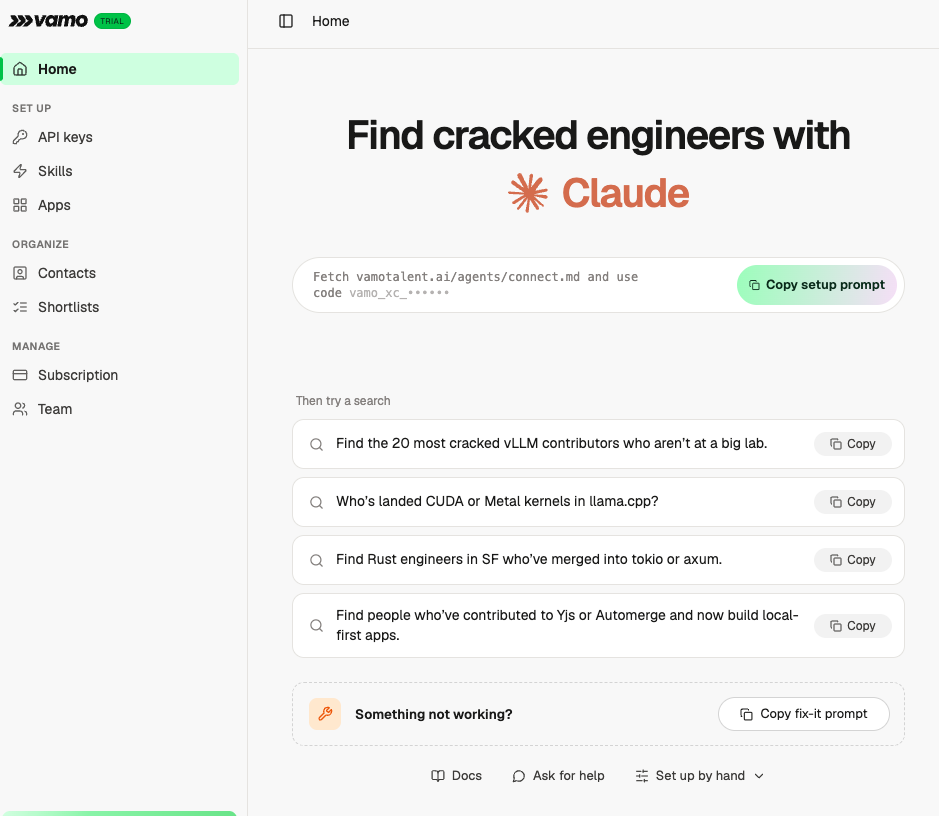
- The green Copy setup prompt button on Home copies one line that sets up the MCP connection and sign-in for your AI agent.
- The setup prompt works with any AI agent. Vamo recommends Claude Code first, then Claude Desktop.
- Set up by hand, at the bottom of Home, gives the Vamo MCP server address and API details for a manual setup.
- Copy fix-it prompt on Home gives your agent a prompt that checks and repairs its Vamo connection.
A quick how-to for getting your team searching. Setup takes about five minutes: sign in, copy the setup prompt from the Home page, paste it into your AI agent, and try a search.
Five steps
- Sign in. Go to app.vamotalent.ai/login and sign in with your work email.
- Copy the setup prompt. On the Home page, click the green Copy setup prompt button. That is the only thing you need; it handles the MCP connection and sign-in for you.
- Paste it into your AI agent. It works with any agent. We recommend Claude Code first, then Claude Desktop.
- Read the full response. Your agent will reply with a few extra plugins and tips worth setting up. Skim it all before you start.
- Try a search. Use one of the example searches on the Home page, or ask in plain language, for example: "Show me PyTorch and Transformers contributors in Bangalore."
Prefer to set it up by hand?
Open Set up by hand at the bottom of the Home page.
MCP: mcp.vamotalent.ai/mcp/search. It signs in with OAuth in your browser.
API: api.vamotalent.ai. Create a key under API keys, then send it as Authorization: Bearer <key>. The spec is at api.vamotalent.ai/openapi.json, or use Docs in the dashboard.
Teach your agent to call the API
Our skills plugin, vamo-ai/vamo-skills, shows your agent how to call the Vamo API directly. Add it as a remote plugin in Claude so it stays in sync with our latest tips and tricks.
Stuck?
Click Copy fix-it prompt on the Home page and paste it into your agent, or reach out to your Vamo contact and we'll get you sorted. For IT and developer teams rolling Vamo out to others, read what IT and developer teams need to know about Vamo.
FAQs
Which AI agent should I use with Vamo?
The Vamo setup prompt works with any AI agent. Vamo recommends Claude Code first, then Claude Desktop.
Do I need an API key to start using Vamo?
No. The Copy setup prompt button on the Vamo Home page handles the MCP connection and sign-in for you. You only create an API key to call the Vamo API directly.
What do I do if Vamo setup is not working?
Click Copy fix-it prompt on the Vamo Home page and paste it into your agent. If that does not sort it, reach out to your Vamo contact.
Still stuck? Tell us.